Educational Tools · Free online tool
MS Paint Online Version
Here is the Microsoft Paint online Application made with JS. It looks exactly like Windows Paint app.


Winter Update
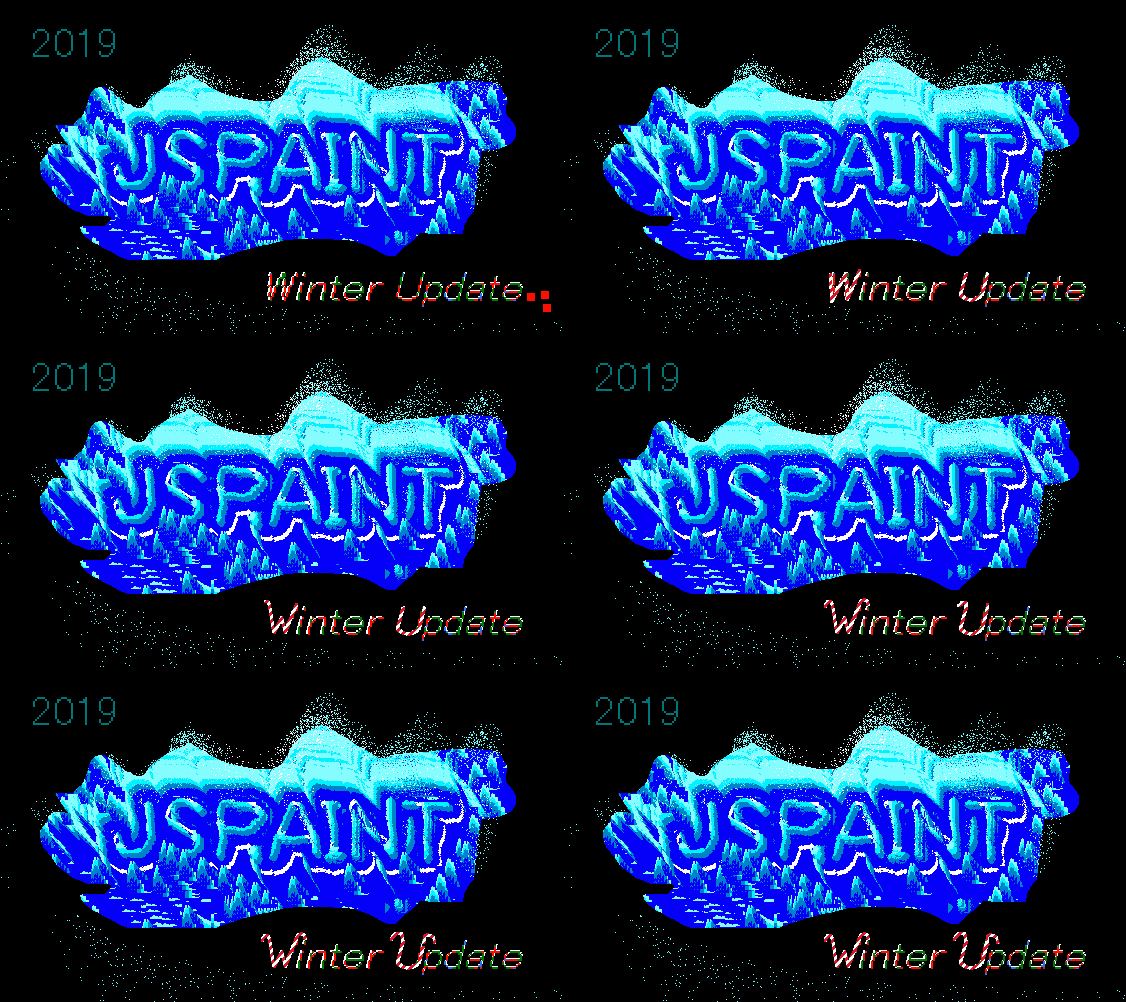
Winter Theme
A new UI skin is available, under Extras > Themes > Winter, featuring winter and holiday icons, festive fonts, and a palette with seasonal colors and peppermint patterns.

Merry Christmas and happy Hanukkah!
Better History
New: Jump to any point in the document's history, forwards or backwards, with Edit > History or Ctrl+Shift+Y.- Click on Text in the history view to go back to text editing.
- You can return to when a selection existed.
- Note: these states are skipped over with normal Undo and Redo, so you need to use the History window.
- Branching history: if you undo, and then make changes, you can get back to everything. Future states are preserved.
Improved Mobile Support
New: Use two fingers to pan the view.
I recently made it easier to grab handles for resizing things. With that, combined with multitouch panning, JS Paint is much more useable on a phone.
Caveat: It's slow on some devices, and parts of the interface are still too small for touch.
Polygon, Text, and Select
Handles are now way easier to drag, with extended click targets, similar to Paint from Windows 7. It's not unreasonable to use with a touch screen now! This applies to selections, textboxes, and the main canvas handles.
Resizing things while zoomed in is finally fixed!
The Text tool now perfectly previews the pixels that will be placed on the canvas. What you see is what you get! Also it retains all browser editing behavior, like spellcheck, using a convoluted, yet elegant overlaying strategy. (I prototyped this here and here if you're interested.)
With the fill-only option selected, the Polygon tool now previews with inverted lines, like MS Paint does. (When you finish the polygon, the boundary of the shape matches the preview exactly, because it actually does draw a stroke, just the same color as the fill.)
Zoom To Mouse
New: The Magnifier now lets you zoom to a specific location, showing a preview of the new viewport.
Also, when zooming out with the Magnifier, or changing the zoom from the toolbar or menus, the top left corner of the viewport is now kept anchored.
Also, pasting a selection will now go to the top left of the viewport, instead of the entire document.
The Grid, Custom Zoom, and Dynamic Cursors
New: The Grid. Zoom to 4x+ and use View > Zoom > Show Grid or Ctrl+G to enable. This works with browser zoom as well to provide crisp gridlines even if you zoom in with your browser.
New: View > Zoom > Custom Zoom, including an actually-custom numerical zoom option, unlike MS Paint.
New: Dynamic cursors for brush and eraser, so you now have a preview of exactly where the tool will draw.
Also, in the event that your browser clears canvases to free up memory, you should be more likely to be able to undo to get back to a useful state.
Full Clipboard Support
JS Paint now lets you copy real image data to the Clipboard, both with keyboard shortcuts and from the Edit menu. This feature is available in Chrome 76+. Other browsers don't support it yet, as of Sep 2019.
Also: paste a URL of an image, and JS Paint will load it. (This is an alternative to File > Load from URL.)

Use Classic MS Paint Online
This browser-based paint editor recreates the familiar classic MS Paint workspace. Draw freely, create shapes, add text, work with colors and edit images without installing desktop software.
Choose a tool from the toolbox on the left, then use the options directly beneath it to adjust that tool. The color palette lets you select foreground and background colors, while the status bar provides useful information as you work.
Drawing and Image Editing Tools
The editor includes pencil, brush, airbrush, fill, eraser, color picker, magnifier, line, curve, rectangle, polygon, ellipse and rounded-rectangle tools. You can also make rectangular or free-form selections and move selected areas around the canvas.
Use the Image menu to flip, rotate, stretch, skew, invert colors or clear the canvas. The Colors menu provides custom color controls, and the View menu includes zoom and grid options for detailed pixel work.
Open, Save and Download Images
Open the File menu to create a new canvas, load an image from your device or save your finished work. Image processing happens in the browser, and the downloaded file is created directly on your device.
The editor works inside the page on desktop and mobile devices. Fullscreen mode is optional and provides additional room for large canvases, but all primary tools and options remain available in the regular page view.