
Simple Traffic Stats: A Lightweight WordPress Analytics Plugin You Can Host Yourself
Download Simple Traffic Stats from GitHub
Simple Traffic Stats is available on GitHub so other WordPress users can test it, review the source code, suggest improvements, and contribute to the project.
Running a WordPress website means you always need a quick way to understand what visitors are reading, where traffic is coming from, and which countries are sending the most page views. Many analytics tools can do this, but they often require external scripts, accounts, dashboards, and more tracking than a small website owner may want.
That is why I created Simple Traffic Stats, a lightweight WordPress statistics plugin that keeps the most useful traffic data inside your own WordPress admin area. It is built for site owners who want simple page view tracking, unique visitor estimates, referrer data, top pages, country reports, and clean charts without depending on a third-party analytics dashboard.
What Simple Traffic Stats does
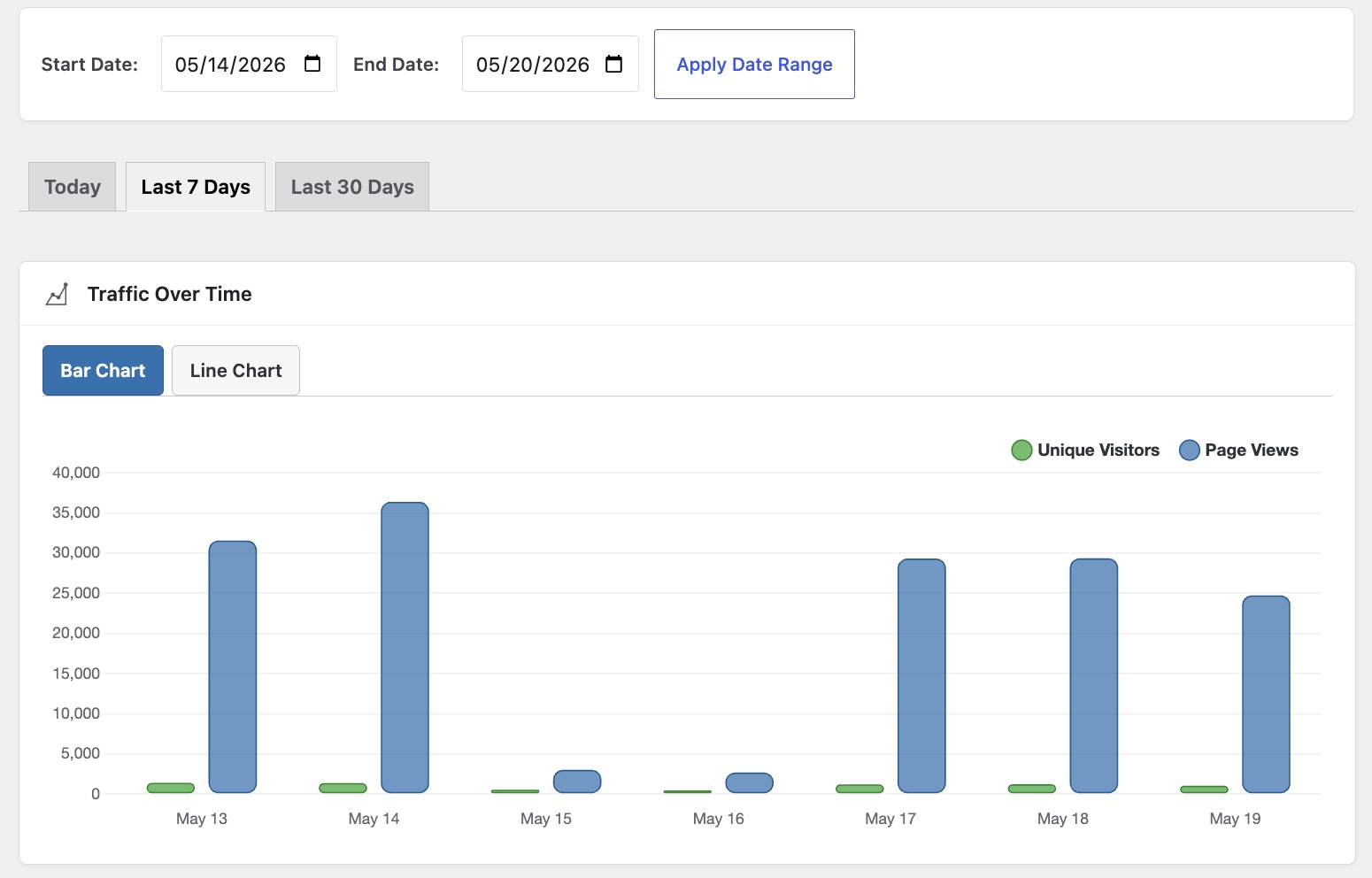
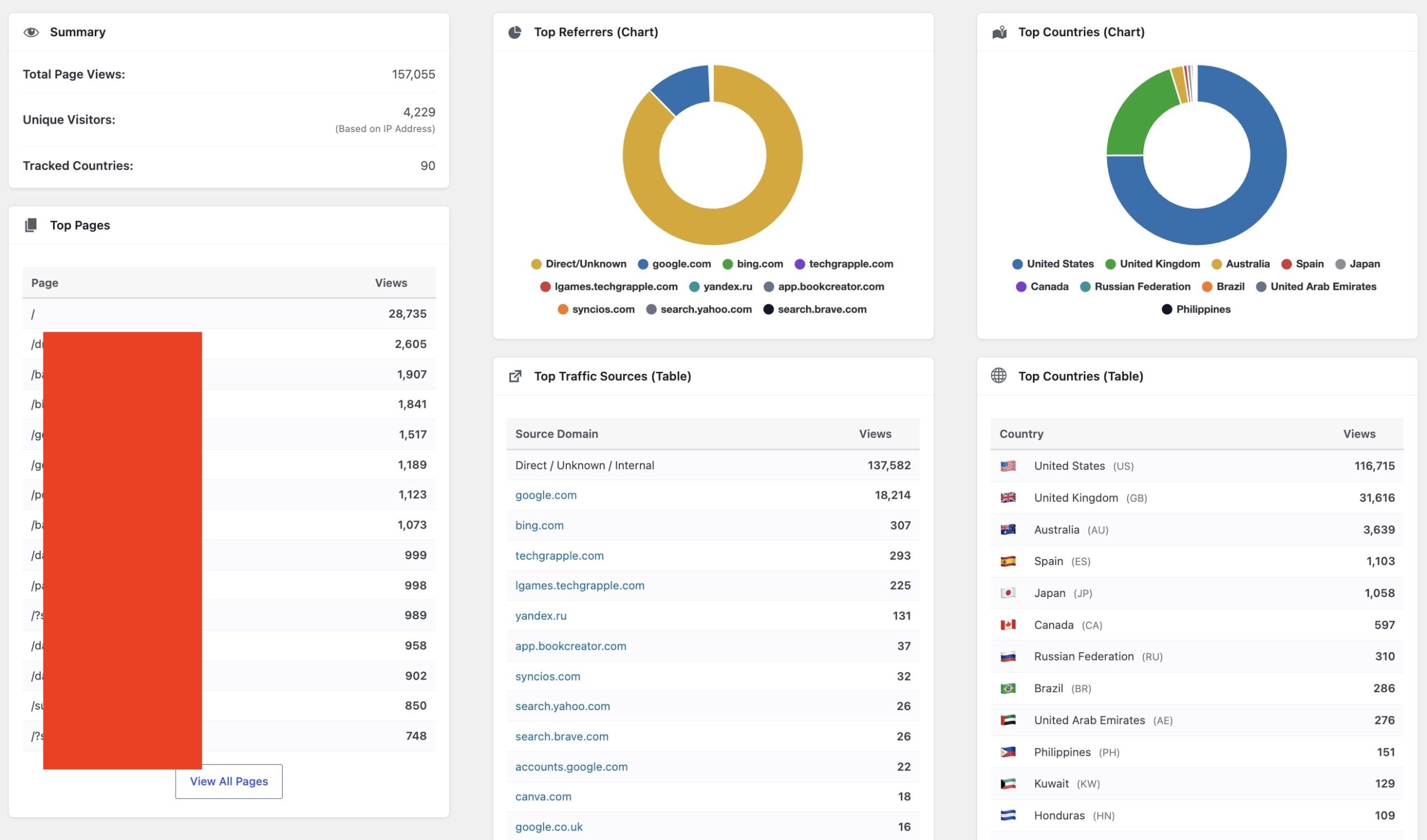
Simple Traffic Stats tracks essential website traffic information and displays it directly in WordPress. The main dashboard gives you a quick summary of page views, unique visitors, top pages, top referrers, and visitor countries. It also includes charts so you can understand traffic changes visually instead of reading only tables.
The plugin currently supports:
- Page view tracking
- Unique visitor estimates based on IP address
- Top pages by views
- Referrer and traffic source reports
- Country tracking with a site-owner-provided MaxMind GeoLite2 Country database
- Bar and line charts for traffic over time
- Doughnut charts for top referrers and countries
- Today, Last 7 Days, Last 30 Days, and custom date range filters
- Bot/crawler exclusion by user-agent keyword
- IP address exclusion
- User role exclusion
- Optional logged-in user tracking
- Optional IP anonymization
- Data clearing tools for old or unwanted traffic records
- A WordPress dashboard widget for a quick traffic snapshot
It is not meant to replace a full enterprise analytics platform. Instead, it focuses on the numbers most WordPress site owners check every day: how many views came in, which pages performed well, what sources sent traffic, and where visitors came from.
How the plugin works
After activation, Simple Traffic Stats creates its own database table using your WordPress database prefix. Each tracked visit is stored locally with fields such as timestamp, IP address, user agent, page URL, referrer, and country code when GeoIP is configured.
On the front end, the plugin loads a small tracking script. The script sends the current page URL and referrer to WordPress through admin-ajax.php. To keep performance smoother, the tracking request is delayed until after the page has loaded or the browser is idle. If the visitor leaves quickly, the script can still send the visit using the browser beacon/keepalive method.
The admin dashboard then reads the saved records and builds the reports. Chart.js is bundled with the plugin and is used to display the bar, line, and doughnut charts in the WordPress admin area.
Unique visitors are estimated from IP data. If IP anonymization is enabled, the plugin stores a modified IP address instead of the full visitor IP. This is helpful for privacy-focused setups, but unique visitor counts can become less precise when anonymization is enabled.
Requirements
Simple Traffic Stats is designed to be simple to install, but there are a few requirements.
Required
- WordPress 5.8 or newer
- PHP 8.1 or newer
- Permission to install plugins in WordPress
- The complete plugin folder, including the bundled
assetsandvendordirectories
Bundled with the plugin
- Chart.js for admin charts
- GeoIP2 PHP API for country lookups
Not bundled
The GeoLite2 Country database is not included in the plugin. If you want country statistics, each site owner must download their own GeoLite2-Country.mmdb file from MaxMind and keep it updated.
This is intentional. MaxMind GeoLite2 data has its own license requirements, so the plugin does not include the database file. The plugin only provides the integration and the settings field where you can add the absolute path to your own .mmdb file.
GeoIP country tracking setup
Country tracking is optional. The plugin will still track page views, unique visitors, top pages, and referrers without GeoIP. However, the country chart and country table require a valid GeoLite2 Country database.
To enable country stats:
- Create or use a MaxMind account.
- Download GeoLite2 Country in GeoIP2 binary format.
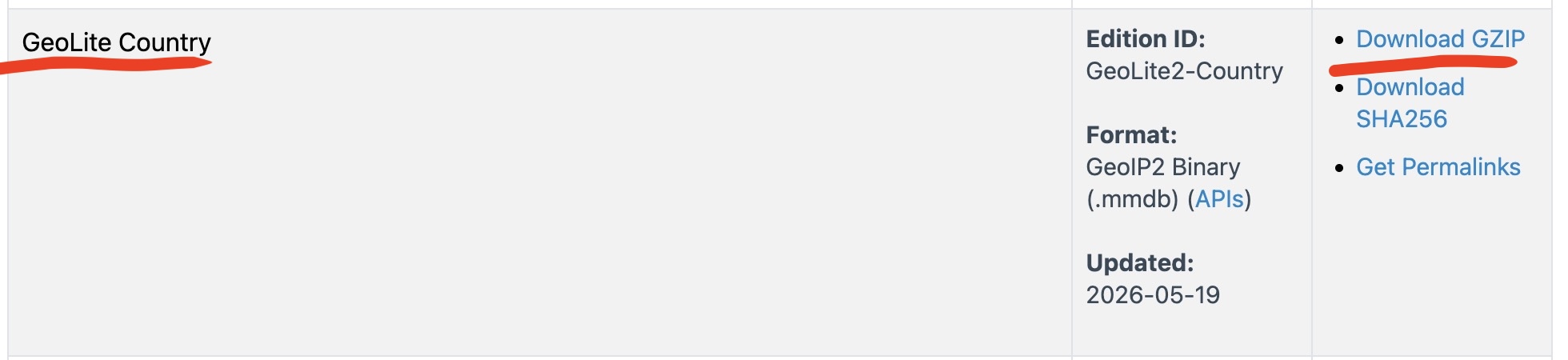
- Extract the downloaded file and locate
GeoLite2-Country.mmdb. - Upload the
.mmdbfile to a server location that PHP can read. - Do not place it inside the plugin folder, because plugin updates may delete it.
- Go to Traffic Stats → Settings in WordPress.
- Paste the full absolute server path to the
.mmdbfile. - Save changes and check the status message.
For example, your server path may look like this:
/var/www/geoip/GeoLite2-Country.mmdb
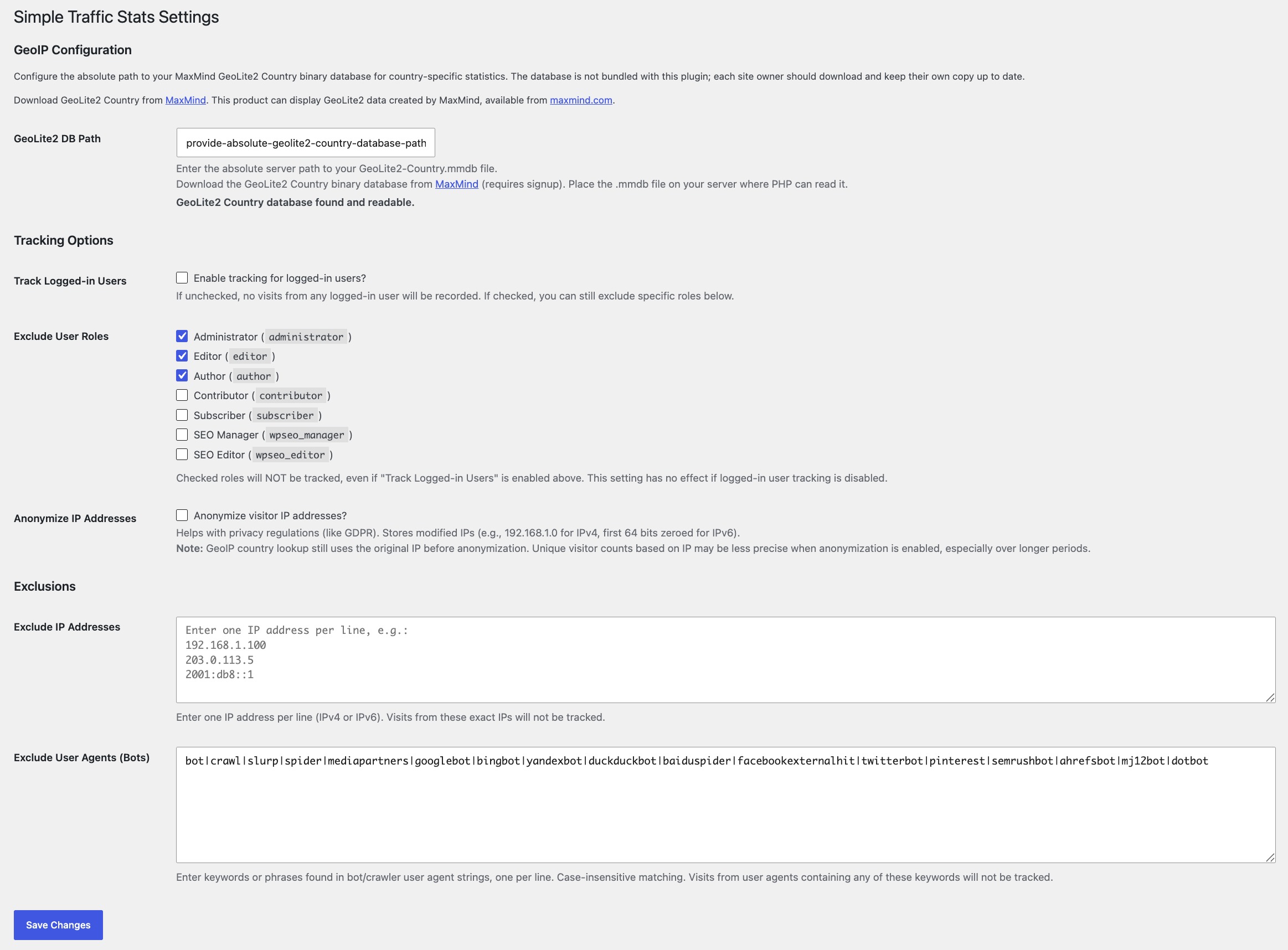
The plugin validates whether the file exists, whether it is readable, and whether it is a Country database. If the path is wrong or the file is not readable by the web server, the settings page will show a warning.
This product can display GeoLite2 data created by MaxMind, available from maxmind.com.
Settings and exclusions
The settings screen is where you control what should and should not be tracked. This is especially useful when you do not want your own visits, admin visits, authors, editors, or bots to inflate the stats.
By default, the plugin can exclude common WordPress roles such as Administrator, Editor, and Author. You can also choose whether logged-in users should be tracked at all. If logged-in tracking is disabled, visits from logged-in users are not recorded.
You can also add IP addresses to exclude. This is useful if you want to ignore your home, office, or server monitoring IP. Bot filtering is handled with user-agent keywords, so you can block common crawlers such as Googlebot, Bingbot, YandexBot, DuckDuckBot, SemrushBot, AhrefsBot, and others.
The IP anonymization option changes the stored IP before saving it to the database. For IPv4, the last octet is set to zero. For IPv6, the last 64 bits are zeroed. The country lookup still uses the original IP locally before the anonymized IP is stored.
Viewing traffic reports
After the plugin starts recording visits, go to Traffic Stats in your WordPress admin menu. The main page gives you date filters at the top, including Today, Last 7 Days, Last 30 Days, and a custom date range.
The traffic-over-time chart can be switched between bar and line chart modes. This makes it easy to compare total page views with unique visitors for each day or time interval.
Below the main chart, the plugin shows:
- A summary card with total page views, unique visitors, and tracked countries
- A Top Pages table
- A Top Referrers chart
- A Top Traffic Sources table
- A Top Countries chart
- A Top Countries table with flags and country codes
There is also a data management section where you can clear old traffic data older than one week, one month, one year, or delete all records if needed.
Privacy and data control
The biggest advantage of Simple Traffic Stats is that the data stays inside your own WordPress database. The plugin does not require you to connect to an external analytics service for the core tracking features.
That said, traffic tracking can still involve personal data depending on your region and how your site is configured. If you use this plugin publicly, you should review your privacy policy, explain what traffic data is collected, and enable IP anonymization if that better matches your privacy requirements.
The plugin gives you control over:
- Whether logged-in users are tracked
- Which WordPress roles are excluded
- Which IP addresses are ignored
- Whether IP addresses are anonymized before storage
- Which bot/crawler user agents are excluded
- How long you keep traffic data
When this plugin is useful
Simple Traffic Stats is useful if you want a quick, local, WordPress-native traffic overview without installing a heavy analytics suite. It is especially helpful for bloggers, game sites, tutorial sites, niche websites, and WordPress owners who only need the most important traffic reports.
It is also helpful for site owners who want to keep analytics simple: open WordPress, click Traffic Stats, and see what happened.
Download and source code
I am making Simple Traffic Stats available on GitHub so other WordPress users can test it, improve it, and contribute.
GitHub repository: Simple Traffic Stats on GitHub
Before using it on a production website, test it on a staging site, review the settings, configure GeoIP only if you need country reports, and make sure your privacy policy matches your tracking setup.
Frequently asked questions
Does it track traffic without MaxMind GeoLite2?
Yes. Page views, unique visitor estimates, top pages, and referrers work without GeoLite2. GeoLite2 is only needed for country charts and country tables.
Why are country stats not showing?
Country stats require a valid GeoLite2-Country.mmdb file, a correct absolute path in settings, and read permission for the web server. Country reports will also only appear after new visits are recorded with GeoIP enabled.
Are unique visitors exact?
No analytics tool is perfect, and this plugin estimates unique visitors using IP-based logic. Shared networks, dynamic IP addresses, VPNs, and IP anonymization can affect the number.
Can I stop tracking my own visits?
Yes. You can disable logged-in user tracking, exclude administrator/editor/author roles, or add your own IP address to the exclusion list.
Does the plugin send data to third-party analytics services?
No. The core traffic data is stored in your WordPress database. Country lookup uses the GeoLite2 database file that you provide on your own server.
Final thoughts
Simple Traffic Stats is built for WordPress site owners who want straightforward traffic numbers without unnecessary complexity. It keeps the focus on page views, visitors, top pages, referrers, countries, and useful charts inside the WordPress dashboard.
If you want a lightweight, self-hosted way to monitor WordPress traffic, Simple Traffic Stats is worth trying.