
Free PDF Tools Everyone Should Know: Convert, Merge, Edit and More
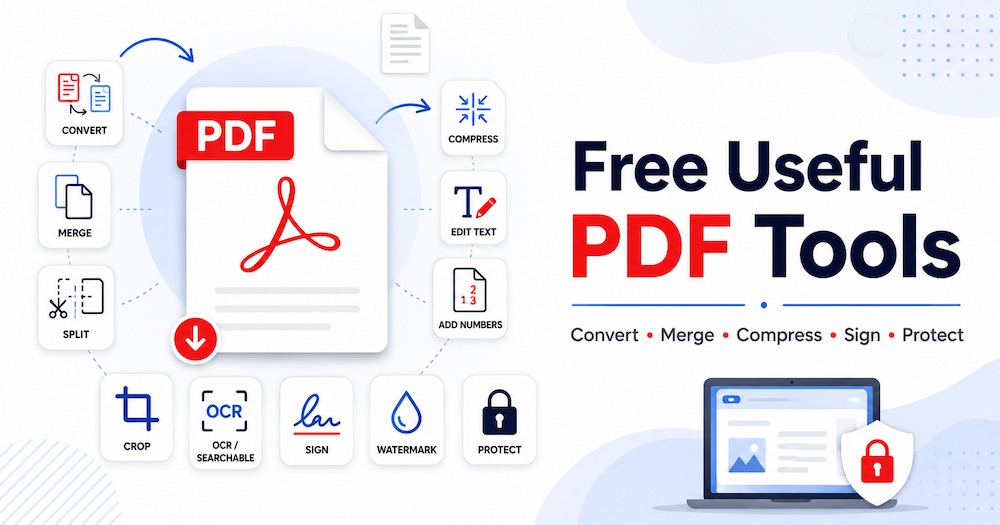
PDFs are excellent at keeping a document’s appearance stable. A report that looks correct on your computer will usually retain the same pages, fonts, images and general layout when someone opens it on another device. That reliability is why PDF has become a standard format for invoices, applications, manuals, ebooks, contracts, schoolwork and official records.
The format becomes less convenient when something needs to change. A file may be too large to upload, its pages may be in the wrong order, or the text may be trapped inside a scanned image. You might need one table from a long report, a few pages from a manual or an editable copy of a document whose original version has been lost.
Those jobs do not always require an expensive desktop application. A focused online tool can often solve the problem more quickly because it gives you the exact function you need without surrounding it with complicated editing controls.
The guide below explains the practical uses of the free PDF and document tools available on TG Productive Web Apps. Every tool has its own linked heading, so you can open the one you need directly.
Why Free Online PDF Tools Are Worth Keeping Bookmarked
Document problems tend to appear at inconvenient moments. A job portal rejects your attachment because it exceeds the upload limit. A client asks for a PDF instead of a Word file. Someone sends a sideways scan, or you discover that a report contains several blank pages just before it must be submitted.
A collection of simple browser-based PDF utilities can help with these everyday situations. Instead of searching for a new website every time, you can use one familiar set of tools for document conversion, page management, image extraction, ebook preparation, signatures and file protection.
The key is to begin with the result you want. If you need to rewrite the document, convert it into an editable format. If the content is already correct but the file is difficult to send, compress it. If only the page order is wrong, organize the pages rather than converting the entire document into another format.
Free PDF and Document Conversion Tools
Conversion tools change a document from one file type to another. They are especially helpful when the person receiving the file uses different software, when the original document needs to be edited or when information must be moved into another program.
PDF Translator
Translating a PDF by copying its text into a separate service can leave you rebuilding headings, labels and page layouts by hand. The problem becomes even harder when the document is a scan and its words cannot be selected in the first place.
The PDF Translator works with searchable documents as well as scanned pages, using OCR when necessary. It supports 100 source and target languages, can detect the original language automatically and places the translated wording back into the document while keeping the page size, images, graphics and text positions as close to the source as possible. This makes it useful for reports, product literature, classroom resources, instructions, forms and travel documents that must remain visually familiar.
Translation can expand a short sentence into a much longer one, so some text may need to be reduced to fit its original space. Review names, figures, technical terms and a selection of pages after downloading the result. Legal, medical, financial, immigration and safety documents should also be checked by a qualified human translator before they are relied upon.
PDF Editor
A finished PDF may still need a correction that is too small to justify finding the original source file and recreating the whole document. You might need to replace a date, fix a heading, add a signature, insert an image or mark a passage for someone else to review.
The PDF Editor brings those jobs into one visual workspace. It can edit detected text, add new text boxes, highlight, draw, create annotations, place links, signatures and images, and work with scanned pages through automatic OCR. It also includes controls for cropping, page numbering, rearranging, rotating and removing pages, making it practical for correcting forms, reviewing reports and preparing documents for distribution.
Compare edited text with the surrounding type and spacing, especially when the PDF uses an uncommon font; a matching TTF or OTF font can be uploaded when needed. Before downloading, inspect every changed page and confirm the page order, crop boundaries, links and numbering. For genuinely sensitive information, use a dedicated redaction tool rather than relying on a visual cover or ordinary eraser mark.
Word to PDF Converter
A Word document is ideal while you are writing and editing, but it is not always the best format for sending the final copy. Fonts, page breaks, tables and images can shift when the recipient opens the file in another version of Word or in a different office program.
The Word to PDF Converter can be used for resumes, business proposals, letters, forms, school assignments, reports, lesson plans and other finished documents that should no longer be casually edited. Turning the file into PDF creates a more dependable sharing copy while allowing you to keep the original Word document for future changes.
Before converting, review tracked changes, comments, headers, footers and blank pages. A PDF records what is currently visible, so unwanted editing notes may become part of the final document if they are not removed first.
PDF to Word Converter
Sometimes the editable source has disappeared and the PDF is the only copy left. Rebuilding a long report or application manually would be slow, particularly when it contains several pages of text.
The PDF to Word Converter gives you a working document that can be corrected, expanded or reformatted in Word. It can help when updating an old company policy, revising a previously published article, changing a contract template, recovering a lost assignment or reusing text from a report you created earlier.
Simple text-based PDFs usually produce the cleanest results. Documents with columns, floating text boxes, unusual fonts or complicated tables may require manual adjustments. Keep the original PDF beside the converted file so you can compare names, dates, figures and page order while editing.
PDF to Text Converter
There are many situations in which you need the words from a PDF but do not need its design. Copying text one page at a time can introduce missing lines, unwanted page numbers and awkward formatting.
The PDF to Text Converter can extract written content into a lightweight text file. That output is easier to search, paste into notes, compare with another document, process with writing software or import into a system that does not accept PDF files.
Researchers can use it to collect quotations from their own documents, writers can recover an old draft, and office workers can extract instructions from a long manual. Because plain text does not preserve images, fonts, columns or visual hierarchy, it is best used when the actual wording matters more than the original appearance.
Word to Text Converter
A Word file may contain more formatting than a particular task requires. Hidden styles, tables, headers and embedded objects can cause problems when text is being moved into a website, coding environment, content-management system or basic note-taking application.
The Word to Text Converter removes the document styling and keeps a simpler version of the written content. It can be helpful for preparing website copy, creating clean text for a prompt, moving a draft into specialist software or saving notes in a format that can be opened almost anywhere.
The conversion is intentionally simple. Images, decorative headings, page layouts and most table structures will not remain as they appeared in Word. Use it when clean written content is the goal rather than an identical visual copy.
Excel to PDF Converter
Spreadsheets are designed for calculations and data entry, but they can be awkward to share with people who only need to read the finished information. Columns may resize, formulas can be changed accidentally and large worksheets may look different depending on the software used to open them.
The Excel to PDF Converter can create a fixed copy of an invoice, price list, timetable, inventory report, financial summary, attendance sheet or project schedule. The reader receives a familiar document instead of an editable workbook.
Check the print area before conversion. Wide tables may need landscape orientation, smaller columns or separate pages. It is also wise to confirm that hidden rows, worksheets and formulas are displaying only the information intended for the final audience.
Excel to CSV Converter
CSV is a simple data format understood by a wide range of websites, databases and business applications. It is commonly requested when uploading product information, customer lists, financial records or other structured data.
The Excel to CSV Converter can prepare spreadsheet information for an ecommerce platform, email system, accounting application, contact manager, database or data-analysis tool. It is particularly useful when another service rejects the original Excel workbook but provides a CSV import option.
CSV stores values in rows and columns, but it does not preserve the full Excel experience. Cell colours, formulas, charts, images and multiple worksheets may not carry across. Review the exported file carefully, especially when the workbook contains commas, dates, currency symbols or leading zeros in product and account codes.
Text to PDF Converter
Plain text is easy to create and edit, but it is not always pleasant to present. Sending a raw text file can make an otherwise useful document feel unfinished, and the lines may wrap differently in different applications.
The Text to PDF Converter can turn notes, instructions, statements, short guides, meeting summaries and simple manuscripts into a document that is easier to download, read and print. It is also convenient when text has been prepared in a basic editor and no Word file exists.
Review paragraph breaks and spacing before conversion. Plain text does not contain the rich formatting of a normal word-processing document, so clear headings and well-separated paragraphs will make the PDF easier to follow.
PDF Compressor
A PDF can become surprisingly large when it contains photographs, scanned pages or high-resolution graphics. Large files take longer to send and may be rejected by application forms, email providers or document-upload systems.
The PDF Compressor can reduce the file size so the document is easier to upload, email, store or share through messaging applications. Common uses include shrinking a scanned passport copy, a photo-heavy brochure, a school project, an illustrated report or a collection of receipts.
Compression usually involves a compromise between size and clarity. After downloading the smaller copy, zoom in on fine print, signatures, charts and identification details. A file that uploads successfully is not useful if the important information has become too blurred to read.
PDF to PowerPoint Converter
A useful presentation may sometimes arrive only as a PDF. You can display the PDF itself, but moving its content into PowerPoint gives you more flexibility when preparing a lesson, training session or business meeting.
The PDF to PowerPoint Converter can provide a starting point for reusing charts, diagrams, page layouts and written material in a slide deck. Teachers may use it to update classroom materials, while a business team may use it to adapt a previous report for a new presentation.
The conversion cannot restore animations, transitions, speaker notes or editable layers that were removed when the original presentation became a PDF. Some pages may enter PowerPoint as mostly fixed content and need to be rebuilt if extensive editing is required.
PowerPoint to PDF Converter
Not everyone receiving a presentation needs to edit or deliver it. In many cases, the audience only needs a stable copy for reading, printing or reviewing after the meeting.
The PowerPoint to PDF Converter can create handouts, downloadable lesson slides, conference materials, product presentations and client review copies. PDF also makes it harder for someone to accidentally move a text box, replace an image or alter the slide design.
Animations, embedded video, audio and clickable presentation actions will not work in the same way inside a static PDF. Make sure every important message is visible on the slide itself, and check that speaker notes do not contain information that should have been included in the shared version.
Tools for Scans, Images and Table Data
Many PDFs are made from scans, screenshots or photographs rather than ordinary digital text. These tools help make scanned pages searchable, turn pages into image files, build PDFs from images and recover tables for use in spreadsheets.
OCR My PDF Tool
A scanned document may look exactly like a normal PDF while behaving like a photograph. You cannot highlight a sentence, search for a name or copy a paragraph because the page contains pixels rather than recognized characters.
The OCR My PDF Tool adds text recognition to scanned pages. It can be used for old letters, printed records, photographed documents, receipts, archived reports and books that need to become searchable. Once processed, finding a particular word inside a long scan becomes much easier.
OCR is not perfect. Blurred pages, handwriting, shadows, decorative fonts and low-resolution scans can produce mistakes. Always verify names, dates, totals, account numbers and legal wording against the visible page before relying on the recognized text.
PDF to JPEG or PNG Converter
Sometimes you need a PDF page as an image rather than as a document. A page image can be inserted into a presentation, used as a website preview, shared through an image-based platform or opened in graphics software for permitted visual editing.
The PDF to JPEG or PNG Converter can turn individual pages into standard image files. PNG is usually a strong choice for diagrams, screenshots and pages containing small text because it keeps hard edges clear. JPEG may be more suitable for photographic pages where a smaller image file is preferred.
Remember that an image version will not behave like the original PDF. Searchable text, clickable links, form fields and document bookmarks will no longer work in the same way.
PNG and JPEG to PDF Converter
Phone cameras and scanners often produce separate image files even when the pages belong to one document. Sending those images individually can be confusing, particularly when the recipient must open them in a specific order.
The PNG and JPEG to PDF Converter can combine photographed homework, signed forms, receipts, portfolio pages, identification copies or scanned notes into one organized PDF. It is also useful for creating a simple photo document without opening a word processor.
Place the images in the correct sequence and rotate any sideways pages before creating the file. Clear images are important, but unnecessarily large photographs can make the PDF difficult to send. Crop distracting surroundings from photographed pages when they do not form part of the document.
PDF to Excel Converter
Retyping a large table from a PDF is slow and creates many opportunities for mistakes. A missed decimal point or a value placed in the wrong column can affect an entire calculation.
The PDF to Excel Converter can help recover tables from invoices, statements, schedules, research reports, product lists and financial documents. Once the information is in a spreadsheet, it can be sorted, filtered, compared and used in formulas.
Treat the converted workbook as a draft rather than guaranteed data. Compare totals, dates, column headings and negative values with the source PDF. Merged cells, multi-line descriptions and scanned tables may require correction before the spreadsheet is ready for analysis.
Tools for Splitting, Merging and Fixing PDF Pages
A document does not always need conversion. Sometimes the content is correct, but the pages need to be separated, joined, reordered, rotated, numbered or trimmed. Page-management tools let you repair the PDF while keeping it in the same general format.
PDF Splitter
A long PDF may contain several independent documents or far more information than one recipient needs. Sending the entire file can be inconvenient and may expose pages that are unrelated to the request.
The PDF Splitter can separate selected page ranges or create smaller documents from a large PDF. You might use it to extract one chapter from a manual, separate monthly invoices, save a particular form, divide a course book by unit or send only the pages requested by a client.
Check the page numbers carefully before splitting, especially when the printed numbers on the document do not match the page count shown by the PDF viewer. Keep the complete source file until every smaller document has been checked.
Delete PDF Pages
Blank scans, duplicate pages, outdated covers and unnecessary attachments can make a PDF look untidy or reveal information that the recipient does not need.
The Delete PDF Pages tool allows you to remove those pages without rebuilding the entire file. It can clean up a scanned application, shorten a report, remove an accidental duplicate or prepare a customer-facing copy of an internal document.
Save the edited version under a new filename rather than replacing your only copy. After deletion, review the table of contents, page references and section numbering. Removing a page may leave behind instructions such as “see page twelve,” which no longer point to the correct location.
PDF Merger
Related documents are often stored as separate files even though they are meant to be read together. Opening and downloading each one individually creates extra work for the reader.
The PDF Merger can combine a resume with certificates, a contract with its appendices, a report with supporting charts, several invoice pages or individual chapters of an ebook. One properly ordered PDF is easier to name, attach, store and archive.
Arrange the source files before merging and inspect the result from beginning to end. Files created by different programs may use different page sizes, orientations or quality levels. Those differences are not necessarily a problem, but they should not interrupt the intended reading order.
Rotate PDF
Sideways pages are common when a scanner handles portrait and landscape documents in the same batch. Phone photographs can also appear upside down after they are converted into PDF.
The Rotate PDF tool can correct the viewing direction without requiring you to scan or create the document again. It is helpful for forms, certificates, receipts, architectural pages and spreadsheets that were captured in mixed orientations.
Check each page individually before saving. A document may contain intentional landscape pages that already display correctly. Rotation fixes pages that are exactly sideways or upside down, but it does not straighten a scan that is only slightly tilted or photographed from an angle.
Organize PDF
A scanner can feed pages in the wrong sequence, and files gathered from several people may arrive with covers, appendices and supporting pages in a confusing order.
The Organize PDF tool makes it possible to rebuild the sequence visually. It can be used to place a title page first, move an appendix to the end, correct reversed scans or arrange several forms in the order requested by an organization.
Page thumbnails are useful for spotting obvious problems, but similar-looking pages can still be confused. Open the finished PDF and read the final lines of one page together with the beginning of the next. This catches sequence errors that may not be visible from thumbnails alone.
Add Page Number to PDF
Page numbers make a long document easier to navigate and discuss. Without them, instructions such as “check the table near the end” can be frustrating for everyone involved.
The Add Page Number to PDF tool can improve reports, manuals, educational materials, policy documents, meeting packs and legal bundles. Numbering is especially valuable when several people will review the file and need to refer to the same page during a discussion.
Check whether the document already displays printed page numbers. You may need the PDF numbering to begin after a cover or contents page. Choose a position that does not cover footnotes, logos or existing footer text, and inspect both portrait and landscape pages.
Crop PDF
Scanned pages often contain large white margins, dark scanner edges, binding marks or parts of the surrounding desk. These unwanted areas can make the actual document appear smaller and less professional.
The Crop PDF tool can trim the visible page area so attention remains on the content. It is useful for scanned book pages, certificates, receipts, artwork, presentation handouts and documents created with unnecessarily large margins.
Inspect pages with headers, footnotes and handwritten comments before applying the crop. Cropping is a visual cleanup method, not a safe method for removing confidential information. Sensitive text should be handled with a proper redaction tool instead.
PDF Tools for Ebooks, Webpages and Long-Term Storage
PDF is not always the most comfortable format for reading or archiving. Ebook formats can adapt text to smaller screens, while preservation-focused PDF formats are intended for records that must remain accessible over time.
PDF to ePub Converter
A normal PDF keeps every page fixed, which can make reading uncomfortable on a phone or small tablet. Readers may need to zoom in and move the page from side to side just to follow a paragraph.
The PDF to ePub Converter can prepare suitable documents for ebook applications that support adjustable text size and reflow. It is a practical choice for essays, novels, guides and text-focused books that will be read on screens of different sizes.
Documents built around precise positioning may not convert cleanly. Magazines, worksheets, forms, mathematical textbooks and image-heavy manuals often depend on their original page design. Review headings, paragraph order, images and the table of contents before distributing the ebook.
PDF to AZW3 or AZW Converter
Sending an ordinary PDF to an ebook reader may result in tiny text and difficult navigation. Kindle-oriented formats can provide a more natural reading experience for documents that are mainly made of continuous text.
The PDF to AZW3 or AZW Converter can be used to prepare personal documents, public-domain books, study notes, manuals and other permitted material for compatible Kindle devices or reading applications.
Conversion quality depends on the source. Multi-column pages, charts, footnotes and complex image placement may need adjustment. Test the finished file on the device where it will be read and confirm that chapter headings, paragraph breaks and any available navigation work as expected.
HTML to PDF
Webpages can change, disappear or become difficult to access when an internet connection is unavailable. Saving a page as PDF creates a portable snapshot that can be read later.
The HTML to PDF tool can capture public articles, reference pages, online reports, event information and other webpages that you are permitted to save. It can also provide a convenient document copy for research notes or offline reading.
Webpages containing sign-in areas, expanding sections, animations, infinite scrolling or content loaded by scripts may not appear exactly as they do in your browser. Review the beginning, middle and end of the PDF, and keep the original webpage address with the saved file so the source remains clear.
PDF to PDF/A
Ordinary PDFs can depend on external fonts, multimedia or features that may not remain available forever. PDF/A is a preservation-focused form of PDF designed for documents that need to remain readable over a long period.
The PDF to PDF/A tool can support archiving workflows for policies, completed projects, administrative records, research documents and other files that should be kept as stable reference copies.
Different organizations may request a particular PDF/A level or validation process. Conversion alone should not be treated as proof that a file satisfies every legal, regulatory or archival requirement. When formal compliance matters, check the resulting file with the system or authority that will receive it.
Tools for Watermarking, Privacy, Signing and Password Protection
Some documents need a visible status label, a signature or stronger control over who can read them. These tools help prepare files for review and sharing, but they should be used with a clear understanding of what each type of protection actually does.
PDF Watermark
A watermark can tell readers that a document is a draft, sample, internal copy or confidential working file. It can also display a company name or ownership notice without manually editing every page.
The PDF Watermark tool is suitable for proposals awaiting approval, preview copies, teaching resources, internal reports and documents shared for review. A well-placed watermark communicates status while leaving the main content readable.
Keep the wording short and check it against the busiest pages, not only the cover. A pale watermark may disappear over photographs, while a dark one can cover signatures and small text. A watermark is a visible notice; it does not prevent copying or replace password protection.
Redact PDF
Documents often contain information that should not be shared with every reader. Examples include home addresses, account numbers, signatures, personal identification details and confidential business information.
The Redact PDF tool is intended for removing selected content before a document is distributed. It can help prepare invoices, legal papers, application forms, customer records and screenshots for an audience that should see only the necessary information.
Drawing an ordinary black box over text in a basic editor is not reliable because the hidden words may still be searchable or removable. After redaction, test the downloaded PDF by searching, selecting and copying around the affected area. Keep the untouched original in a secure location.
PDF Signer
Printing a document only to sign it, scan it and send it back creates unnecessary work. A visible electronic signature can be more convenient for routine forms and everyday approvals.
The PDF Signer can be used for permission forms, internal confirmations, simple agreements, delivery acknowledgements and documents that need a visible signature before being returned by email.
Check the recipient’s requirements before signing. A drawn or uploaded signature placed on a PDF is not automatically the same as a certificate-backed digital signature with identity verification and a formal audit trail. Keep a copy of the completed document and confirm that the signature is placed on the correct page without covering nearby wording.
PDF Password Protector
Email attachments and shared files can sometimes reach the wrong person. Adding an opening password provides an extra barrier when a PDF contains information that should not be immediately readable by anyone who obtains the file.
The PDF Password Protector can be used for private reports, financial statements, employment documents, personal records and other files that need controlled access. Choose a strong password that is not based on an obvious name, date or common phrase.
Send the password through a different channel from the PDF. For example, the document might be emailed while the password is given by phone or secure message. Password protection is helpful, but it does not replace careful storage, access control or appropriate handling of highly sensitive records.
PDF Password Remover
Repeatedly entering a password can become inconvenient when you are authorized to use a document regularly. It can also interfere with approved archiving, indexing or document-management workflows.
The PDF Password Remover can create an unprotected working copy when you know the password and have permission to change the file. This may be useful for your own records, old statements, internal documents or files that must enter another authorized system.
Removing protection does not make the information less sensitive. Store the new copy carefully and keep the protected original when it may still be needed. This type of tool should never be used to bypass access restrictions on a document you do not own or have permission to modify.
How to Choose the Right PDF Tool
The easiest way to choose is to describe your problem in plain language. “The file is too large” points to compression. “I need to rewrite the text” calls for PDF to Word. “I only need several pages” suggests splitting, while “these files belong together” calls for merging.
A few tasks may require more than one step. A set of photographed pages might first be turned into a PDF and then processed with OCR. A large report may need unnecessary pages removed before it is compressed. When several steps are necessary, complete structural work such as sorting, rotating and deleting pages before performing the final compression or protection.
Avoid converting the same document repeatedly through several formats. Every conversion creates another opportunity for fonts, images, page breaks or data to change. Use the most direct path between the file you have and the result you need.
How to Get Better Results from Online PDF Tools
- Keep the original: Work from a copy and preserve the untouched source until the result has been checked.
- Prepare the document first: Correct obvious mistakes, page order and orientation before the final conversion.
- Check every page: Do not assume that a correct first page means the entire file converted properly.
- Verify important information: Names, dates, totals, signatures and account details deserve a manual comparison.
- Use clear filenames: Names such as “report-final-compressed.pdf” are easier to understand than a collection of files called “document” or “output.”
- Test the finished file: Open it independently before sending it to a client, teacher, employer or official organization.
Privacy Considerations Before Uploading a PDF
A PDF can contain more than the information visible on the first page. It may include personal details, comments, form values, metadata, attachments or confidential material hidden elsewhere in the file.
Review the document before using any online service. Remove unnecessary pages and consider whether the content is suitable for browser-based processing. Highly confidential, legally restricted or regulated documents may need to be handled through an approved workplace system or offline application instead.
After editing or converting, inspect the downloaded copy again. Cropping a page is not the same as redacting information, and adding the word “Confidential” does not technically prevent access. Choose the security tool according to the real risk rather than relying on appearance alone.
Frequently Asked Questions About Free PDF Tools
Are free online PDF tools enough for normal document work?
They can handle many everyday jobs, including conversions, compression, page rearrangement, image extraction, signatures and password protection. Advanced publishing, accessibility remediation, legal certification or highly confidential work may still require specialist software.
Why does a PDF to Word conversion sometimes change the layout?
A PDF stores content in fixed positions on a page, while Word uses flowing paragraphs and editable objects. Columns, floating images, unusual fonts and tables may therefore need to be reconstructed or adjusted after conversion.
How can I make a scanned PDF searchable?
Use OCR to recognize the letters contained in the page images. The new text layer can make searching and copying possible, although important details should still be checked against the visible scan.
Should PDF pages be saved as JPEG or PNG?
PNG is generally better for text, diagrams and screenshots with sharp edges. JPEG often creates smaller files for photographs and pages dominated by continuous-tone images.
What is the difference between splitting a PDF and deleting pages?
Splitting creates separate files from selected pages or page ranges. Deleting pages creates one new copy with unwanted pages removed. The better choice depends on whether you want several independent documents or one shortened document.
Does cropping permanently remove private information?
It should not be treated as a privacy tool. Cropping changes the visible page area, while redaction is intended to remove sensitive content. Use proper redaction and test the final file before sharing it.
Does a watermark stop someone from copying a PDF?
No. A watermark communicates ownership, status or confidentiality, but it is not access control. Use password protection and secure sharing practices when the document needs restricted access.
Can a password remover unlock any protected PDF?
It is intended for files you own or are authorized to modify when the required password is available. It should not be used to bypass another person’s access restrictions.
Simple PDF Tools Can Solve Surprisingly Frustrating Problems
Most people do not need a complicated PDF editor every day. They need a reliable way to complete one clear task: convert a document, reduce its size, recover its text, fix its pages or protect it before sharing.
Keeping a well-organized collection of free PDF tools nearby can remove many small interruptions from school, office and personal work. The best results come from choosing the most direct tool, preserving the original file and checking the finished document instead of assuming that every conversion is perfect.
Visit TG Productive Web Apps whenever you need to convert, organize, extract, sign or secure a document without installing a large software package.