
How to Auto Sync Ollama Models with OpenCode on Mac
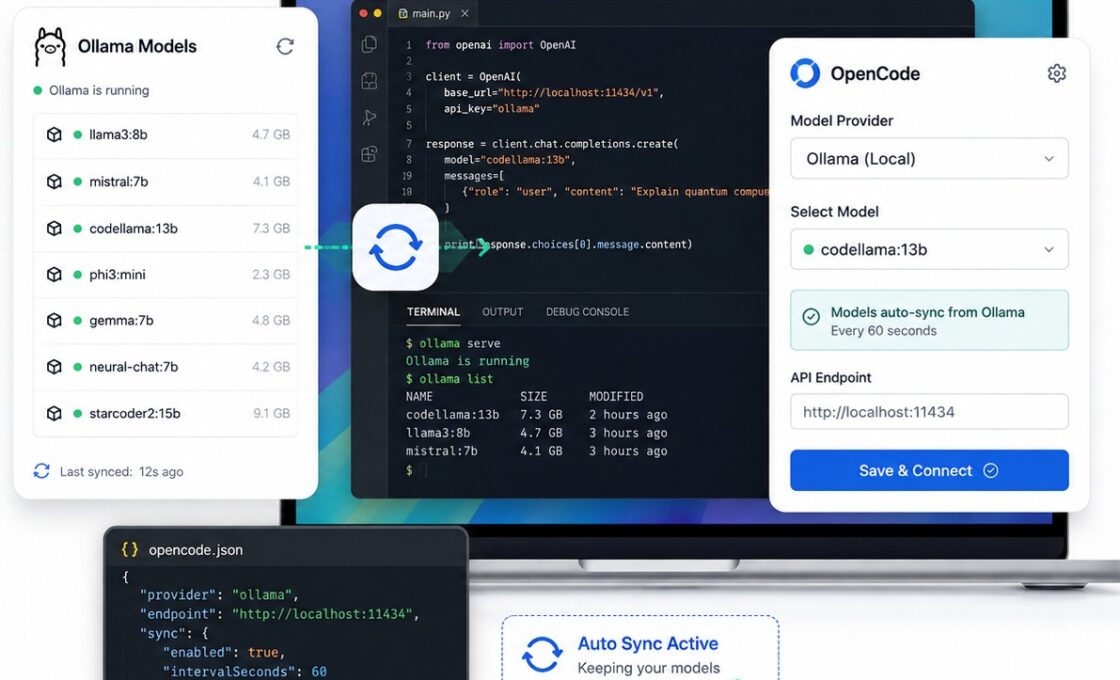
OpenCode works well with local Ollama models on a Mac, but there is one annoying part. A new model that appears in Ollama may not automatically appear in the OpenCode model list. The same problem happens in reverse. You can remove a model from Ollama and still find its old entry inside OpenCode.
This guide fixes that problem with a small automatic sync setup. OpenCode will read the current list of models from Ollama and keep its own Ollama provider list updated. The sync runs in the background on macOS every 60 seconds.
You do not need to manually edit the OpenCode configuration each time you run ollama pull or ollama rm. The setup checks Ollama’s local model list and updates OpenCode for you.
The same OpenCode configuration can serve the OpenCode Desktop app and the terminal version. This makes the setup useful if you switch between the graphical OpenCode app and the command-line interface.
What This Ollama and OpenCode Auto Sync Does
The setup has two small parts.
- A Python script reads every model currently installed in Ollama.
- A macOS LaunchAgent runs that script automatically every 60 seconds.
The Python script reads Ollama through its local API at http://localhost:11434/api/tags. It then updates the Ollama provider inside the OpenCode global configuration file.
The OpenCode configuration stays at:
~/.config/opencode/opencode.jsonThe script updates the Ollama model list instead of making you maintain a fixed list by hand.
Step 1: Check the Ollama Models Installed on Your Mac
Ollama must already be running before OpenCode can use its local models. Start by checking the models Ollama currently knows about.
Open Terminal and run the following exact command:
curl -s http://localhost:11434/api/tags | python3 -c '
import sys,json
data=json.load(sys.stdin)
for m in data.get("models", []):
    print(m["name"])
'
The command prints one installed model per line. Your list may contain Qwen, DeepSeek, Gemma, coding models, local GGUF models, cloud entries, or any other model that you added to Ollama.
For example, a local Ollama installation could return names such as:
qwen3.6:35b-mlx
qwen3.6:35b-a3b-nvfp4
qwen3.6:27b-coding-nvfp4
The auto sync will use the model IDs reported by Ollama. This matters because OpenCode needs the real Ollama model ID when it sends a request.
Step 2: Create the Ollama to OpenCode Sync Script
The next script checks Ollama and writes its current models into OpenCode. It also keeps existing settings for models that remain installed.
Paste this exact block into Terminal:
mkdir -p "$HOME/.local/bin"
mkdir -p "$HOME/.config/opencode"

cat > "$HOME/.local/bin/sync-opencode-ollama" <<'PY'
#!/usr/bin/env python3

import json
import sys
import urllib.request
from pathlib import Path

config_path = Path.home() / ".config" / "opencode" / "opencode.json"

try:
    with urllib.request.urlopen(
        "http://127.0.0.1:11434/api/tags",
        timeout=10
    ) as response:
        ollama_data = json.load(response)
except Exception as exc:
    print(f"Ollama unavailable: {exc}", file=sys.stderr)
    sys.exit(0)

model_names = sorted({
    model.get("name") or model.get("model")
    for model in ollama_data.get("models", [])
    if model.get("name") or model.get("model")
})

if config_path.exists():
    try:
        config = json.loads(config_path.read_text())
    except Exception as exc:
        print(f"OpenCode config is not valid JSON: {exc}", file=sys.stderr)
        sys.exit(1)
else:
    config = {
        "$schema": "https://opencode.ai/config.json"
    }

providers = config.setdefault("provider", {})
ollama = providers.setdefault("ollama", {})

ollama["name"] = "Ollama Local"
ollama["npm"] = "@ai-sdk/openai-compatible"

options = ollama.setdefault("options", {})
options["baseURL"] = "http://127.0.0.1:11434/v1"

old_models = ollama.get("models", {})
new_models = {}

for model_name in model_names:
    existing = old_models.get(model_name, {})
    if not isinstance(existing, dict):
        existing = {}

    existing.setdefault("name", model_name)
    new_models[model_name] = existing

ollama["models"] = new_models

config_path.write_text(
    json.dumps(config, indent=2, ensure_ascii=False) + "\n"
)

print(f"Synced {len(model_names)} Ollama models to OpenCode:")
for model_name in model_names:
    print(f"  {model_name}")
PY

chmod +x "$HOME/.local/bin/sync-opencode-ollama"

"$HOME/.local/bin/sync-opencode-ollama"
The last command runs the script once. Terminal should report how many Ollama models it added to OpenCode.
An example result looks like this:
Synced 7 Ollama models to OpenCode:
  grm-sky-128k:latest
  kimi-k3:cloud
  qwen3.6:27b-coding-nvfp4
  qwen3.6:35b-a3b-nvfp4
  qwen3.6:35b-mlx
You may have more or fewer models. The number does not matter. The important part is that the list matches the models installed in Ollama.
How the OpenCode Ollama Provider Works
The script creates an OpenCode provider named Ollama Local. It connects to:
http://127.0.0.1:11434/v1This is Ollama’s OpenAI-compatible endpoint. OpenCode can send normal chat and coding requests through it.
The script does not copy any model files. Ollama still stores and runs the models. OpenCode only receives their names and uses Ollama as the local model server.
Step 3: Make Ollama Model Sync Automatic Every 60 Seconds
The script works already, but running it by hand after every model change would defeat the purpose. macOS can handle the job with a LaunchAgent.
The following setup runs the sync when the LaunchAgent loads and repeats it every 60 seconds.
Paste this exact block into Terminal:
mkdir -p "$HOME/Library/LaunchAgents"
mkdir -p "$HOME/Library/Logs"

PYTHON3="$(command -v python3)"

cat > "$HOME/Library/LaunchAgents/com.zoheb.opencode-ollama-sync.plist" <<EOF
<?xml version="1.0" encoding="UTF-8"?>
<!DOCTYPE plist PUBLIC "-//Apple//DTD PLIST 1.0//EN"
  "http://www.apple.com/DTDs/PropertyList-1.0.dtd">
<plist version="1.0">
<dict>

    <key>Label</key>
    <string>com.zoheb.opencode-ollama-sync</string>

    <key>ProgramArguments</key>
    <array>
        <string>$PYTHON3</string>
        <string>$HOME/.local/bin/sync-opencode-ollama</string>
    </array>

    <key>RunAtLoad</key>
    <true/>

    <key>StartInterval</key>
    <integer>60</integer>

    <key>StandardOutPath</key>
    <string>$HOME/Library/Logs/opencode-ollama-sync.log</string>

    <key>StandardErrorPath</key>
    <string>$HOME/Library/Logs/opencode-ollama-sync-error.log</string>

</dict>
</plist>
EOF

plutil -lint "$HOME/Library/LaunchAgents/com.zoheb.opencode-ollama-sync.plist"

launchctl bootout gui/$(id -u) \
  "$HOME/Library/LaunchAgents/com.zoheb.opencode-ollama-sync.plist" \
  2>/dev/null || true

launchctl bootstrap gui/$(id -u) \
  "$HOME/Library/LaunchAgents/com.zoheb.opencode-ollama-sync.plist"

launchctl kickstart -k \
  gui/$(id -u)/com.zoheb.opencode-ollama-sync
Look for an OK result from the plist check. That confirms that macOS accepts the LaunchAgent file.
Once loaded, the LaunchAgent runs without an open Terminal window. You do not need to keep a script running in the foreground.
Step 4: Check the Automatic Sync Log
The LaunchAgent writes successful sync results to a log file. Run:
sleep 2
cat "$HOME/Library/Logs/opencode-ollama-sync.log"
You should see your current Ollama models listed in the output.
Now check the error log:
cat "$HOME/Library/Logs/opencode-ollama-sync-error.log"An empty error log is normal. It means the background sync has not reported an error.
What Happens When You Install a New Ollama Model?
You can install a model in the normal Ollama way. For example:
ollama pull MODEL_NAMEYou do not need to run the OpenCode sync script afterward.
The process works like this:
- Install the model in Ollama.
- Wait 60 seconds.
- Restart OpenCode.
- Open the model selector.
- Select the new Ollama model.
What Happens When You Remove an Ollama Model?
Remove a model with the normal Ollama command:
ollama rm MODEL_NAMEThe background script will see that the model no longer exists in Ollama. It will remove that entry from the OpenCode Ollama provider on the next sync.
Restart OpenCode Desktop on Mac
You can quit and reopen the OpenCode Desktop app manually. You can also use Terminal:
osascript -e 'quit app "OpenCode"'
sleep 2
open -a OpenCode
This forces the graphical OpenCode app to reload its model configuration.
Does This Work with the OpenCode Terminal Version?
Yes. The sync updates OpenCode’s global configuration rather than a Desktop-only preference.
You can check the models from Terminal with:
opencode modelsTo check only the Ollama provider:
opencode models ollamaThe results should use OpenCode’s provider and model format:
ollama/qwen3.6:35b-mlx
ollama/qwen3.6:35b-a3b-nvfp4
You can start the terminal interface with:
opencodeYou can also launch a specific model directly:
opencode --model "ollama/qwen3.6:35b-mlx"Where the Auto Sync Files Are Stored
| Purpose | Location |
|---|---|
| OpenCode global config | ~/.config/opencode/opencode.json |
| Ollama sync script | ~/.local/bin/sync-opencode-ollama |
| macOS LaunchAgent | ~/Library/LaunchAgents/com.zoheb.opencode-ollama-sync.plist |
| Successful sync log | ~/Library/Logs/opencode-ollama-sync.log |
| Error log | ~/Library/Logs/opencode-ollama-sync-error.log |
How Often Does OpenCode Sync with Ollama?
The LaunchAgent contains this setting:
<key>StartInterval</key>
<integer>60</integer>
The value uses seconds. A value of 60 tells macOS to run the sync about once per minute.
You do not need to run sync-opencode-ollama each time you change your Ollama models. The LaunchAgent handles that job.
How to Confirm the Background Service Still Works
Check the log at any time:
cat "$HOME/Library/Logs/opencode-ollama-sync.log"You should see repeated entries similar to:
Synced 7 Ollama models to OpenCode:The number changes when you install or remove models.
Check errors with:
cat "$HOME/Library/Logs/opencode-ollama-sync-error.log"If the error file stays empty, the sync job is running without a reported problem.
Ollama Must Be Running
The sync script asks Ollama for its model list through the local Ollama server. The script cannot retrieve models while Ollama is unavailable.
You can quickly test Ollama with:
curl -s http://localhost:11434/api/tagsA working Ollama server returns JSON data that contains the installed models.
Why Use Automatic Ollama Model Sync with OpenCode?
Manual OpenCode model configuration works when you use one fixed model. It becomes inconvenient once you test several local models.
You may pull a new Qwen coding model today and remove an older GGUF model tomorrow. A fixed OpenCode configuration gets out of date each time the Ollama library changes.
This setup makes Ollama the source of the model list. OpenCode receives the current names without forcing you to rewrite JSON for every model change.
It also prevents old Ollama model entries from building up inside the OpenCode model picker after you remove models from your Mac.
Quick Auto Sync Checklist
- Ollama runs locally on the Mac.
- The sync script reads
http://127.0.0.1:11434/api/tags. - OpenCode connects to Ollama through
http://127.0.0.1:11434/v1. - The macOS LaunchAgent runs the sync every 60 seconds.
- You do not need to run a manual sync command after every Ollama model change.
- After adding or removing a model, wait 60 seconds.
- Restart OpenCode after the 60-second wait.